Download · Installation help
Installation help.
LMX doesn't have a Windows code-signing certificate yet, so your browser and Windows treat the installer as coming from an unknown publisher. That's expected, and it doesn't mean the download is broken. This page shows what you'll see and which button to press.
Microsoft Edge
Getting past the Edge download warnings.
Edge warns twice about a file that few people have downloaded before. You may see both warnings, or only the first.
- 1
Choose Keep on the download warning
Edge says the installer isn't commonly downloaded. Point at the download in the Downloads panel, select the three dots to the right of it, and choose Keep.
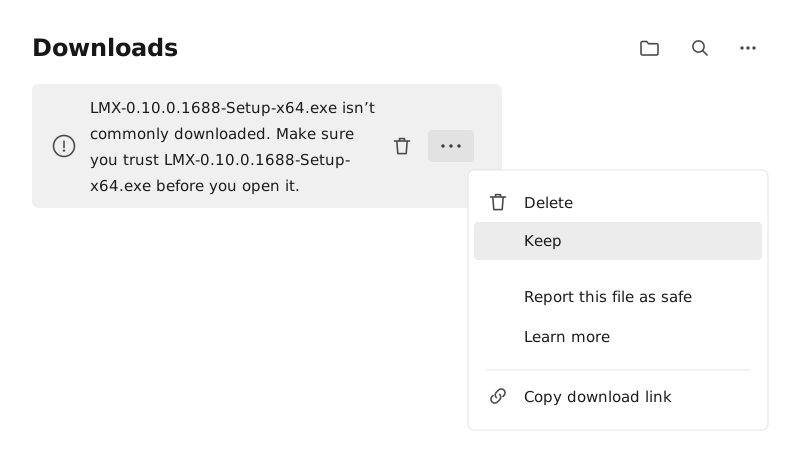
The three dots sit to the right of the warning. Keep is the second item in the menu. Open the picture to see it full size. - 2
Then Keep anyway
A second warning may follow, this one from Microsoft Defender SmartScreen. Select the arrow next to Delete, then choose Keep anyway. The Publisher: Unknown line on this screen is caused by the same missing certificate. It is not a separate problem.
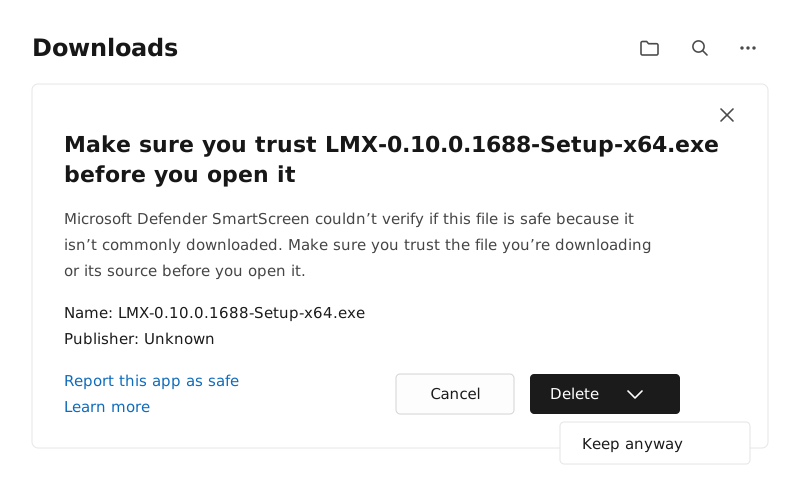
Keep anyway is behind the arrow on the Delete button, not next to Cancel. Open the picture to see it full size. - 3
Open the file
With the warnings cleared, the download finishes as normal. Select Open file to run the installer. If Windows shows a blue "Windows protected your PC" box at that point, select More info, then Run anyway.
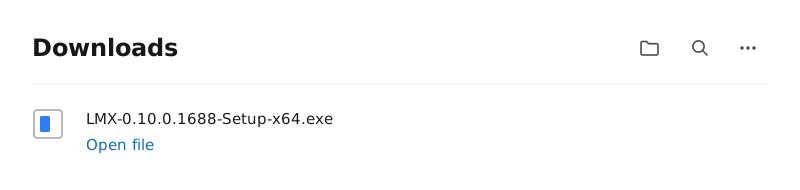
Open file appears under the installer's name once the download has finished. Open the picture to see it full size.
Any other browser
Unblocking the installer in Windows.
Most other browsers save the file without complaining, but then nothing happens when you run it. Windows has marked the file as coming from the internet and is blocking it. Clearing that mark takes four clicks.
- 1 Open your Downloads folder, right-click the LMX installer, and choose Properties.
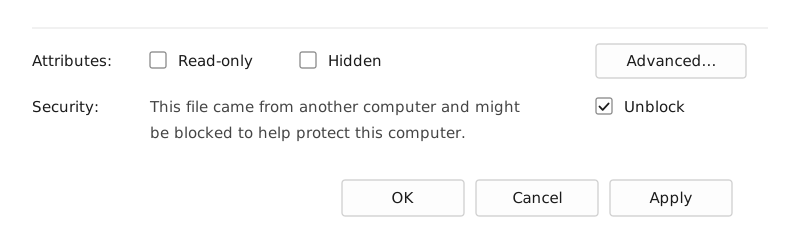
- 2 At the bottom of the General tab there's a Security line saying the file came from another computer. Tick Unblock.
- 3 Select OK to close the dialog.
- 4 Double-click the installer. It opens normally now. If Windows shows a blue "Windows protected your PC" box, select More info, then Run anyway.
Still stuck?
If the installer still won't run, or you're seeing something this page doesn't cover, email us and say what you saw. A screenshot of the warning and the name of your browser is usually enough for us to tell you which button you're looking for.